
Interoperability is all in the world of Building Information Modeling (BIM). Complex projects involve a combination of various disciplines, such as architectural, structural, and MEP projects, each with its own specialized software. Tekla Structures, which is the brainchild of Trimble, can be considered to be one of the strongest structural engineering and steel detailing tools. Not all team members of a project ecosystem, however, use Tekla.
But how will Tekla users be able to share the correct model information with other individuals engaged in Revit, ArchiCAD, or Navisworks without losing important information?
The solution is the IFC workflow, which is a universal, open data format that enables Tekla Structures to communicate with the non-Tekla world. We shall discuss in this blog how IFC (Industry Foundation Classes) is a useful bridge and facilitates the efficient and effective cooperation between various BIM platforms.
What is IFC (Industry Foundation Classes)?
An open and vendor-neutral file format was created by buildingSMART International, named IFC, or Industry Foundation Classes. It is a very straightforward and effective aim to enable the different BIM applications to share model data in a seamless way.
These files, as opposed to proprietary formats (such as .tekla or .rvt), allow opening, viewing, and usage by virtually any BIM software platform—meaning that the project-important data is never hidden or inaccessible to all parties involved.

Why IFC Matters in BIM
The basis of openBIM is an open-source movement concerned with the interoperability of software and open cooperation. It guarantees that a structural model created in Tekla can be interpreted by a Revit architect or an MEP engineer working with ArchiCAD, and no data is distorted or lost.
IFC eradicates so-called data silos in large-scale projects that involve several stakeholders, which offers a common digital language to all project participants.
Key Benefits of Using IFC
- Cross-platform collaboration: Easily exchange models between Tekla, Revit, ArchiCAD, and Navisworks.
- Data preservation: Open format ensures long-term accessibility.
- Standardization: Reduces errors caused by software incompatibility.
- Transparency: Promotes clarity and accountability among stakeholders.
In short, IFC ensures that the integrity of your model—and the information within it—remains intact across different tools and workflows.
Understanding Tekla Structures and Its Data Environment
One of the most sophisticated tools to be used to model steel, concrete, and mixed-material structures is Tekla Structures. It is strong because of the accuracy of constructible models and the degree of detail that can be dealt with.
What Makes Tekla Unique
Tekla Structures is famous for its accuracy when it comes to structural modeling, detailing, and fabrication. It allows users to model steel beams and connections, as well as complicated reinforced concrete structures, in a very precise manner. Tekla is also strong in the constructible level of detail—rebar placement, bolt size, and weld configuration.
This makes it a favorite among engineers, fabricators, and contractors who require exact, build-ready information.
Tekla’s Native File Formats
Tekla has its own file formats, such as .db1, .tbp, and .tekla, which include geometry and metadata, including materials, connections, and fabrication attributes. Nevertheless, non-Tekla users (such as architects or MEP engineers) generally cannot read or view these files without any specialized viewer or license.
The Need for IFC in Mixed-Software Workflows
On extracurricular projects, architects may work in Revit, engineers in Tekla, and contractors may look into models in Navisworks. In the absence of a unified file format, teamwork is lacking. The IFC is the common denominator that makes the models of Tekla understandable to all and that ensures efficient communication during the design and construction stages.
The IFC Workflow in Tekla Structures
The IFC workflow is the substitution between Tekla and other BIM platforms. When a Tekla user transfers a model to IFC, the information, including geometry, metadata, classifications, and object relationships, is incorporated in the file.
Exporting IFC from Tekla
To share your Tekla model via IFC, follow these steps:
- Prepare the model: Clean up unused elements, assign correct material and profile data, and ensure naming consistency.
- Access the export command: Go to File → Export → IFC.
- Select IFC version: Choose between IFC2x3, IFC4, or IFC4 Reference View, depending on recipient software.
- Adjust settings: Define which elements to export, assign property sets (e.g., part marks, material grade), and confirm coordinate origins.
- Export the file: Tekla generates an .ifc file ready for distribution.
Pro tip: Use the IFC4 Reference View for coordination models and the IFC4 Design Transfer View for models requiring editable geometry.
Importing IFC into Other Platforms
Once exported, non-Tekla users can import the IFC file into various software:
- Revit—for architectural coordination and structural reference.
- ArchiCAD—for design development and visualization.
- Navisworks—for clash detection and sequencing.
- Solibri Model Checker—for validation and QA/QC reviews.
- BIMcollab or BIMvision—for lightweight model viewing and issue tracking.
The IFC retains essential information such as material type, geometry, and part identifiers, making it suitable for downstream workflows.
Updating and Synchronizing IFC Files
Projects evolve constantly, so IFC files must be updated regularly.
To ensure smooth synchronization:
- Maintain consistent naming conventions and version numbering (e.g., Model_v5_IFC4.ifc).
- Use shared coordinates across all platforms.
- Communicate version updates clearly through a shared CDE (Common Data Environment).
This ensures everyone is working on the latest, most accurate model data.
Common Challenges in the IFC Workflow
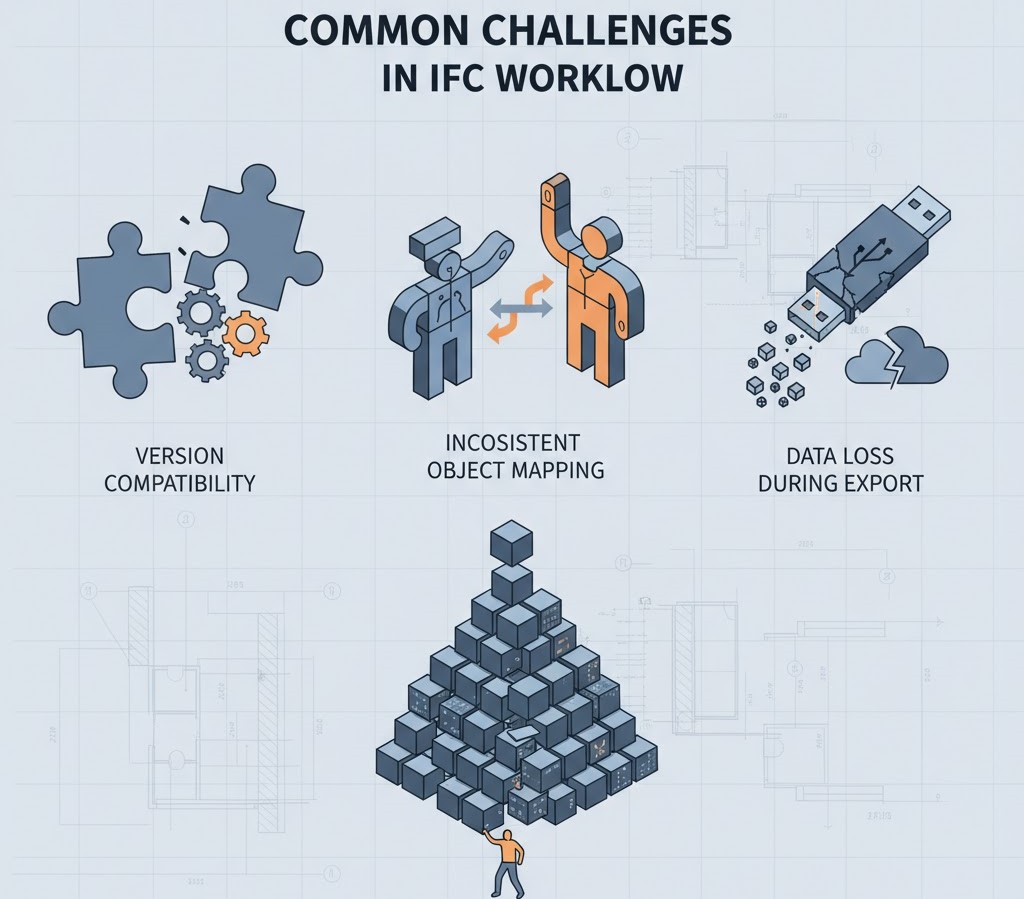
Although IFC has brought the revolution in BIM interoperability, it has not come without difficulties. During import/export, users may experience such problems as an absence of data, geometry deformity, or misaligned elements.
Data Loss During Export
Sometimes, certain parameters (like rebar data or connection details) may not appear in the IFC.
Solution: Use Tekla’s dedicated rebar export options or IFC4 Design Transfer View to capture detailed geometry and material data.
Model Size and Performance
Large Tekla models can generate very heavy IFC files, slowing performance.
Solution: Export models in sections (by level, phase, or area) and exclude unnecessary categories such as temporary components or reference geometry.
Inconsistent Object Mapping
Different BIM tools interpret element names differently (e.g., “Beam” vs. “IfcBeam”).
Solution: Use Tekla’s IFC mapping configuration to align object types before export, ensuring accurate categorization across platforms.
Version Compatibility
Older software may not fully support IFC4 files.
Solution: Communicate with your collaborators and confirm the IFC version their tools can handle before exporting.
Tools and Extensions That Enhance Tekla’s IFC Workflow
Several specialized tools enhance IFC-based collaboration. Platforms like Solibri, BIMcollab, and Navisworks allow teams to review, analyze, and coordinate IFC models from multiple sources in a single environment.
Tekla IFC Exporter and Importer Extensions
Tekla offers enhanced IFC Exporter and IFC Importer extensions through Tekla Warehouse. These provide improved control over:
- Property mapping
- IFC4 schema support
- Custom filters for selective export
These extensions ensure more accurate data transfer and greater flexibility in managing IFC content.
Model Sharing Platforms
Trimble Connect is Tekla’s cloud-based collaboration platform, allowing users to upload models and share IFCs with non-Tekla users in real time.
Through Trimble Connect:
- Stakeholders can view IFC files directly in a browser.
- Teams can annotate, comment, and manage issues collaboratively.
- No specialized software installation is needed—making collaboration frictionless.
Validation and Coordination Tools
Use Solibri, Navisworks, and BIMcollab for IFC-based coordination.
These tools allow teams to:
- Perform clash detection
- Review design intent
- Track issues via BCF (BIM Collaboration Format)
This integrated approach ensures better communication between Tekla and non-Tekla teams.
The Future of OpenBIM and IFC Integration
The AEC industry is moving rapidly toward openBIM ecosystems, where interoperability is no longer optional—it’s expected.
Emerging trends include:
- Adoption of IFC4 for better material representation and rebar accuracy.
- BCF integration for cloud-based issue tracking.
- AI-assisted model validation to detect inconsistencies automatically.
- Digital twins are where live data from construction sites syncs with IFC-based models for real-time decision-making.
As standards evolve, Tekla’s IFC integration will continue to strengthen, supporting richer data exchange and smarter workflows across every project phase.
Conclusion
The IFC workflow is what makes the integration of the Tekla Structures and the non-Tekla platforms smooth. It changes standalone BIM models into shared data environments where all the people, like architects and contractors, can collaborate, work as a team, and coordinate.
Using IFC, Tekla users are able to convey intricate structural data correctly, minimize project danger, and enhance open-mindedness. OpenBIM is not some sort of trend but the future of integrated and efficient design and construction.
Have you been preparing to streamline your Tekla IFC process and create perfect BIM teamwork? Strand Co. assists AEC companies to combine Tekla with Revit, ArchiCAD, and other systems by providing customized IFC plans and BIM coordination processes. Get in touch with us and simplify your data transfer and ensure that your projects are indeed interoperable.