
The architecture, engineering, and construction (AEC) sector has quickly transitioned to digital teamwork and work at a distance. Revit Cloud Worksharing has come as a game-changer as teams with international backgrounds grow more and more global, teams in different locations can collaborate with ease in real time, regardless of distance.
In this detailed tutorial, we are going to discuss what Revit Cloud Worksharing is, how to make it work and how you can successfully implement it to work with distributed teams. We will also consider such aspects as best practices, configuration measures, advantages, difficulties and how to attain effective collaboration and management of models in the cloud.
What Is Revit Cloud Worksharing?
Revit Cloud Worksharing is a cloud working capability that is operated by Autodesk BIM Collaborate Pro (previously BIM 360 Design). It enables several users anywhere in the world to collaborate and synchronize a Revit model in real time on top of the cloud without a conventional local server or VPN.
In a standard stand-up, the Revit models are hosted in the Autodesk Docs or BIM Collaborate Pro cloud server, and all the stakeholders of the project, including the architects, engineers, BIM managers, and contractors, can access and make changes and updates.

Key Functions of Revit Cloud Worksharing
- Real-time co-authoring of Revit models.
- Models and associated files are stored centrally on the cloud.
- Team and discipline controlled access permissions.
- In-house versioning and history of the model.
- Smooth connection with Autodesk Construction Cloud (ACC).
By eliminating location barriers, Revit Cloud Worksharing ensures that distributed teams remain connected, aligned, and efficient, no matter the distance.
Why Cloud Worksharing Matters for Distributed Teams
The workflow of the present-day AEC is not limited to one office anymore. At this point, teams are distributed in various cities, countries, and time zones. The conventional file-sharing procedures, such as emailing of models, utilization of FTP servers, or the use of VPN access, are slow, inaccurate, and ineffective.
This is solved by Revit Cloud Worksharing, which allows centralized collaboration in real-time using the Autodesk cloud platform. This makes sure that all the team members are working on the updated version of the model that minimizes disputes and time wastage.
Major Advantages for Distributed Teams
- Remote Accessibility: Work on shared Revit models from anywhere with an internet connection.
- Improved Collaboration: Multiple disciplines can co-author models simultaneously.
- Reduced IT Overhead: No need for complex VPNs, local servers, or manual file transfers.
- Automatic Version Control: Every sync creates a model version history for easy rollback.
- Real-Time Issue Tracking: Integrate with Autodesk Docs for review, markups, and approvals.
- Enhanced Security: Autodesk’s cloud servers ensure data encryption and controlled access.
For distributed or hybrid teams, Revit Cloud Worksharing isn’t just convenient, it’s essential for staying productive in a connected design ecosystem.
Understanding How Revit Cloud Worksharing Works
To understand implementation, you first need to grasp the architecture behind cloud-based Revit collaboration.
1. The Traditional Workflow (Local Worksharing)
Traditional Revit worksharing uses a storage server within an office building as the home location of a central model. Every team member develops a local copy, performs edits and updates the changes to the central model.
This system will perform well in a single network; however will not work well when teams are stationed in different locations or remote offices.
2. The Cloud-Based Workflow (Revit Cloud Worksharing)
The main model in the cloud workflow will be in Autodesk Docs or BIM Collaborate Pro. These users initiate and update local versions through the cloud.
All models are synchronized to the Autodesk cloud server servers, there is no need to have shared local networks.
Example Workflow:
- Each team member opens their Revit file from the Autodesk cloud.
- They make design changes locally on their device.
- They click “Synchronize with Central”, which updates the cloud-hosted model.
- All team members receive real-time updates via the cloud.
This process ensures all participants always work on the most current version of the model, reducing version conflicts and coordination errors.
Setting Up Revit Cloud Worksharing: Step-by-Step Implementation
Implementing Revit Cloud Worksharing for distributed teams requires both technical setup and workflow planning. Below is a complete breakdown.

Step 1: Acquire the Right Autodesk Subscription
To enable Revit Cloud Worksharing, your organization needs Autodesk BIM Collaborate Pro licenses. This subscription provides access to:
- Autodesk Docs
- Autodesk BIM Collaborate
- Revit Cloud Worksharing
Each user collaborating on the shared model must have an active license linked to your Autodesk account.
Step 2: Set Up Autodesk Docs or BIM Collaborate Pro
Once you have the subscription:
- Log into the Autodesk Construction Cloud (ACC) platform.
- Create a new project in Autodesk Docs.
- Assign user roles (Project Admin, Editor, Viewer, etc.).
- Establish project folder structures (e.g., Architecture, MEP, Structural).
- Set up permissions to control model access and editing rights.
This serves as your Common Data Environment (CDE), the central hub where all project files and Revit models are stored.
Step 3: Enable Cloud Worksharing in Revit
- Open your Revit project file.
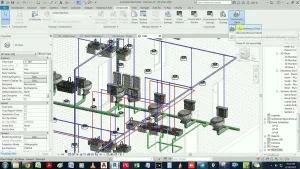
- Click on Collaborate → Collaborate in the Cloud.
- Select the project folder in Autodesk Docs where you want to store the model.
- Revit will create a Cloud Central Model in the specified location.
- Invite project members via Autodesk Docs to collaborate on the model.
Once enabled, all model synchronization and version control will occur via the cloud.
Step 4: Set Up Linked Models
In most BIM projects, multiple Revit models (e.g., Architectural, Structural, MEP) are linked together.
For distributed teams:
- Upload all discipline-specific models to Autodesk Docs.
- Link them via the cloud path, not the local drive.
- Regularly synchronize and reload links to ensure coordination across teams.
Cloud linking ensures that all models remain synchronized across global offices without manual updates.
Step 5: Define Worksets and Permissions
To manage simultaneous editing:
- Use Worksets (e.g., Structural Elements, MEP Fixtures, Furniture, etc.) to organize model elements.
- Assign ownership or editing permissions where needed.
This prevents multiple users from editing the same element simultaneously, reducing sync conflicts.
Step 6: Establish Model Synchronization Protocols
Distributed teams must follow a consistent sync schedule to maintain model integrity.
Best practices:
- Daily Synchronization: Encourage team members to sync multiple times per day.
- Scheduled Coordination Syncs: Perform coordinated merges weekly.
- Automated Backups: Leverage Autodesk’s version control to archive critical milestones.
Regular syncs keep all contributors aligned and minimize data loss.
Step 7: Communication and Coordination Workflows
Use built-in communication tools like:
- Issues and Markups in Autodesk Docs for review comments.
- Design Collaboration Module for tracking model versions and design packages.
- Meetings and Coordination Spaces for virtual team collaboration.
You can also integrate tools like Microsoft Teams or Slack for faster communication between distributed members.
Best Practices for Effective Revit Cloud Worksharing
After going live with your system, it is advisable to use best practices in the industry so as to achieve maximum performance and cooperation.
1. Establish a BIM Collaboration Protocol
Prior to initiating the project, write down clear collaboration rules such as file naming rules, folder organization, and frequency of model updating. This protocol must be in line with your BIM Execution Plan (BEP).
2. Maintain Stable Internet Connectivity
Since Cloud Worksharing requires the transfer of data, make sure that team members are connected to a high-speed Internet (preferably, over 20 Mbps) that is stable.
3. Use Design Packages for Controlled Sharing
The Design Collaboration module in BIM Collaborate Pro lets you create Design Packages, controlled snapshots of discipline models.
Teams can:
- Publish their design packages.
- Review other teams’ packages before linking them.
This prevents premature data sharing and improves coordination discipline.
4. Monitor Model Performance
Large Revit models can impact cloud sync performance.
Optimize by:
- Regularly auditing and purging unused families.
- Compacting models before sync.
- Using model health tools to reduce file size.
- Avoiding unnecessary linked models or oversized elements.
5. Track Version History and Issues
Use Autodesk’s built-in Version History to track model evolution.
Leverage Issue Tracking to record coordination conflicts, assign responsibility, and monitor resolution progress.
6. Integrate Clash Detection and Coordination Tools
Integrate Revit models with Navisworks Manage or Autodesk Coordinate for clash detection.
Schedule automated coordination reviews and record clashes directly within the Autodesk ecosystem.

7. Train Teams and Standardize Processes
Training ensures all users understand:
- How to open and synchronize models.
- How to handle worksets and linked files.
- How to resolve sync conflicts.
- How to publish and share design packages.
Standardized workflows lead to fewer coordination errors and improved productivity.
The Benefits of Implementing Revit Cloud Worksharing
Successfully implementing Revit Cloud Worksharing can transform how distributed AEC teams operate.
1. Real-Time Collaboration
Team members from different disciplines can co-author Revit models simultaneously, improving design integration and reducing coordination delays.
2. Faster Decision-Making
Design changes are immediately visible to all stakeholders, enabling faster review cycles and informed decisions.
3. Cost and Time Savings
Eliminating the need for local servers, manual file sharing, and repeated revisions results in significant cost and time efficiencies.
4. Enhanced Transparency
Every action is recorded in the cloud, providing full traceability for project audits and model versioning.
5. Secure, Centralized Data
Autodesk’s cloud infrastructure provides enterprise-level data security, ensuring intellectual property and project information are safe.
6. Seamless Global Collaboration
Revit Cloud Worksharing empowers organizations to leverage talent worldwide without geographic constraints.
Future Trends: The Evolution of Cloud Collaboration in BIM
The integration of AI, automation, and real-time analytics into BIM collaboration platforms will further streamline Revit Cloud Worksharing.
Future enhancements include:
- AI-assisted clash detection and model validation.
- Integrated AR/VR collaboration environments.
- Automated model performance diagnostics.
- Cross-platform interoperability with non-Autodesk tools.
These advancements will make distributed collaboration more intelligent, efficient, and scalable than ever before.
Conclusion
The use of Revit Cloud Worksharing of dispersed teams transforms the practice of implementing the current AEC projects. It breaks geographical boundaries, improves coordination, and facilitates real-time design collaboration between the offices located all over the world.
With the help of systematic setup actions, development of coherent communication rules, and the observation of BIM canons, teams will be able to ensure high efficiency and precision at every stage of the project life cycle.
In a contemporary competitive world of design, cloud collaboration is not an option, but it is a new industry standard.
Optimize Your BIM Collaboration with Strand Co
Strand Co proudly supports AEC companies across Hauppauge and nearby New York communities by delivering modern BIM collaboration systems built for real project demands. From Revit Cloud Worksharing to secure team coordination, we help distributed and hybrid teams stay productive and aligned on every task. Our specialists handle everything—setup, training, workflow optimization, and ongoing support—so your projects keep moving without delays.
As a trusted local partner, STRAND Consulting focuses on making BIM processes easier, faster, and more reliable for architects, engineers, and construction firms throughout the region. Because we’re based right here in Hauppauge, we understand the pace, pressure, and expectations of local and international projects.
You can reach us by phone at (631) 805-3179, or visit our office at 490 Wheeler Rd, Suite 108, Hauppauge, NY 11788.
Find us on the map here: https://maps.app.goo.gl/6QPGiXRxNgQyX4aX8
If you’re ready to simplify cloud collaboration and support your remote teams with the right tools, Strand Co is here to help every step of the way.